MOTION CAPTURE
MADE EASY.
LOCAL + FREE.
Turn a real performance into your character’s next scene. The complete MiniMax H3 character + background swap guide for ComfyUI.
LOCAL.ComfyUI workflow
YOUR LOOK.Character + setting
GET THE
DEMO ASSETS.
Use the same source footage and reference images as this tutorial. Download everything together or pick individual files.
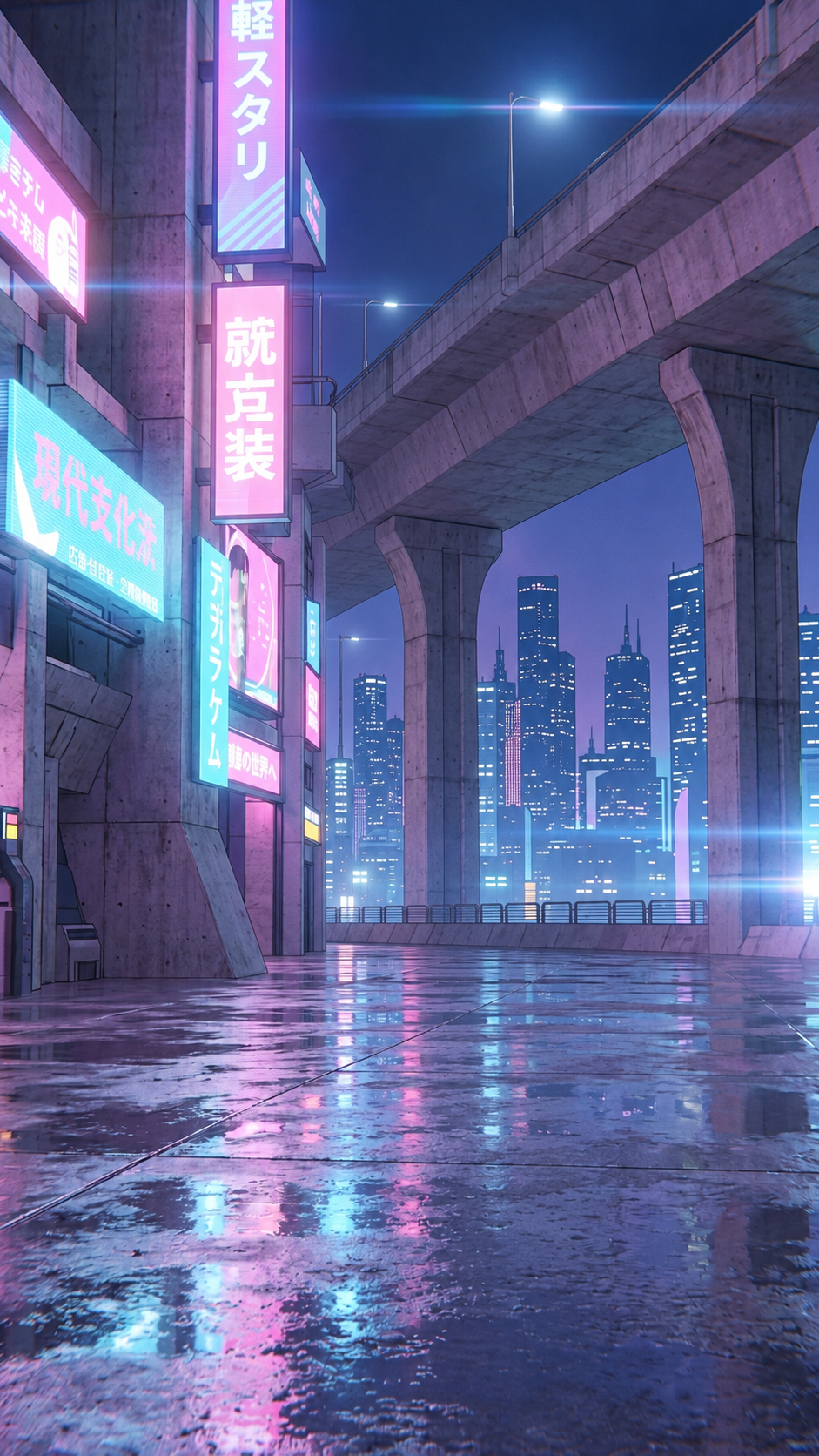
Workflow PNG + JSON + source video + reference imagesDOWNLOAD THE ASSET PACKZIP · 15.9 MB ↓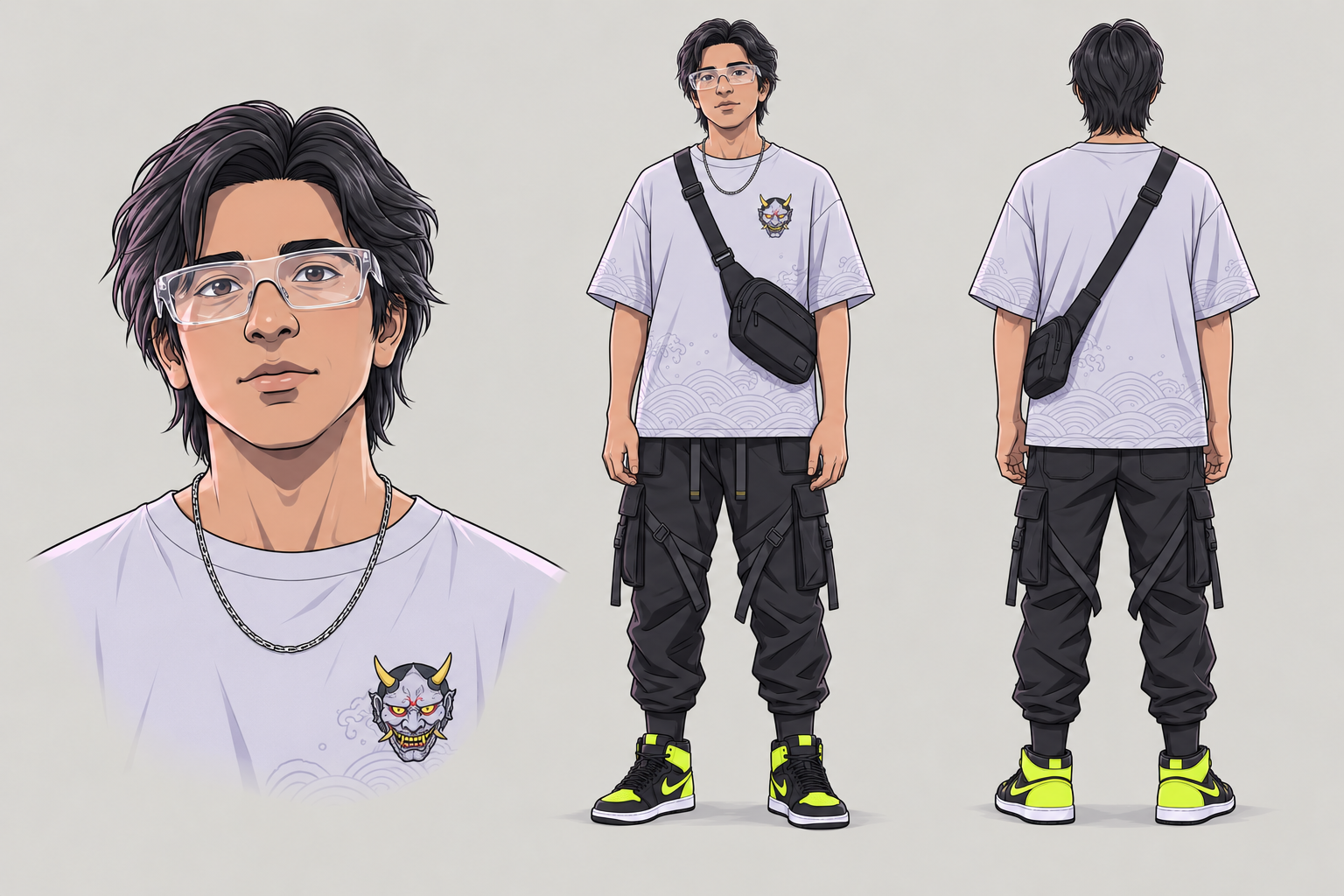
The original workflow PNG contains embedded workflow JSON. Download it and drag it onto the ComfyUI canvas to load the nodes and connections. Models and custom nodes are downloaded separately.
LOAD IT.
MAKE IT READY.
Load the workflow first. Let its own nodes tell you what needs to be installed.
Open the workflow in ComfyUI
Download the ComfyUI workflow PNG above, then drag and drop that original PNG onto the ComfyUI canvas. Its embedded JSON loads the workflow nodes and connections. You can also download the separate workflow JSON and drag it onto the canvas. Use the downloaded file rather than a screenshot or the webpage’s compressed preview.
Install missing custom nodes
Open Manager → Install Missing Custom Nodes, install the packages reported by the graph, then restart ComfyUI and refresh the browser. The visible Load Video and Video Combine nodes come from ComfyUI-VideoHelperSuite. Follow Manager for any additional dependencies.
Download the matching models
Check the model loaders on the right side of the expanded workflow image. Follow the workflow’s model links and use the exact filename, precision and LoRA version it requests. This reference-to-video graph needs a ref2va diffusion model.
| Component | ComfyUI folder |
|---|---|
| Reference-to-video diffusion model | models/diffusion_models/ |
| Text encoder | models/text_encoders/ |
| Video VAE / audio VAE if required | models/vae/ |
| Character-swap / Turbo LoRAs if used | models/loras/ |
Restart or refresh the model list, select the downloaded files in the loaders, and keep the supplied sampling settings for your first test. Compare the filenames in your loaded graph with the model loaders shown in the expanded workflow image.
MiniMax H3 model repository ↗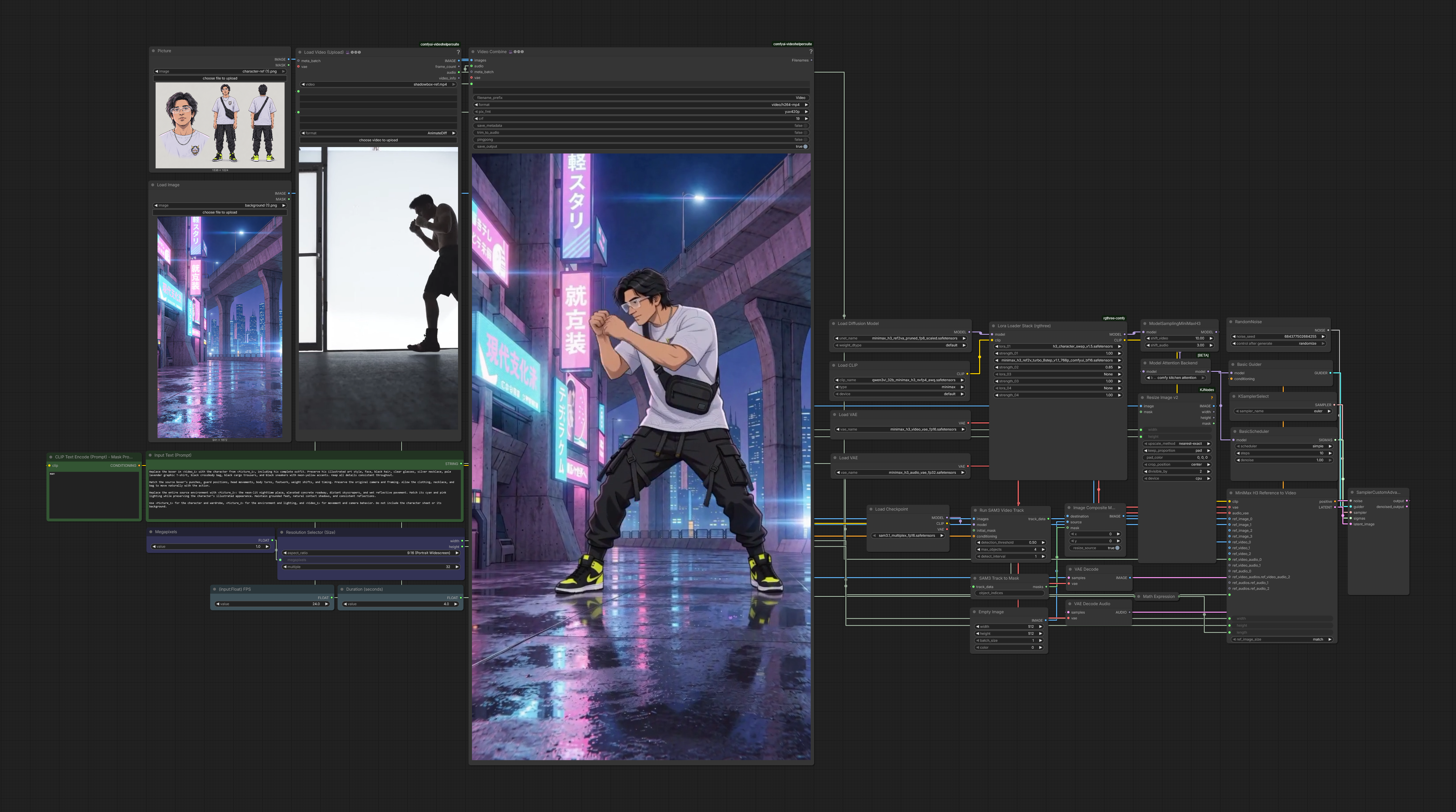
GIVE THE MODEL
A CLEAR CHARACTER.
A good sheet makes the look explicit: one face, one outfit, consistent details from every angle.
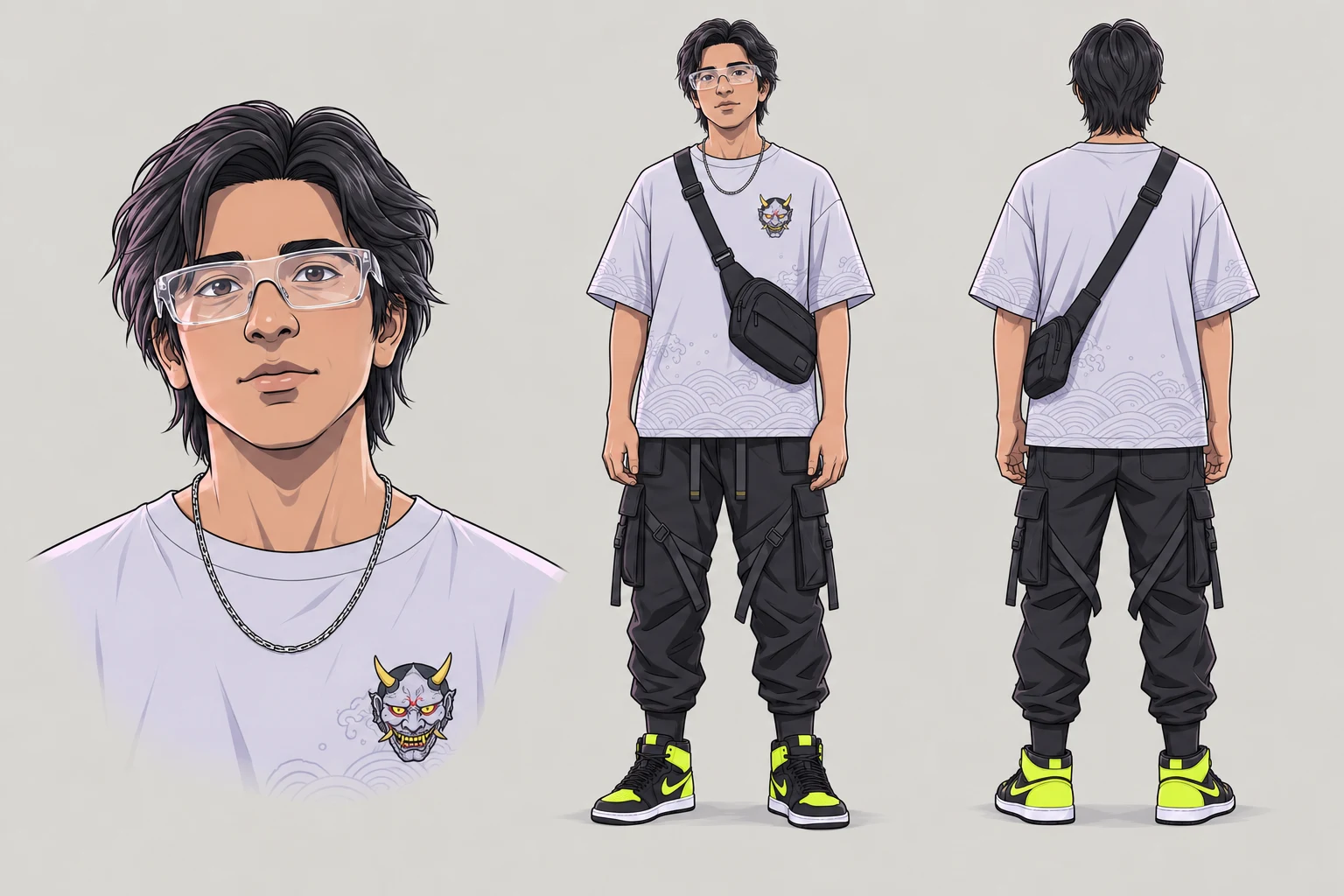
Design a new character with Krea 2 Turbo
Start with the Krea 2 Turbo GGUF workflow. Load its JSON, install the listed nodes and models, and generate a full-body image from a precise description.
Once you like the design, use the Krea 2 QuadView workflow with its matching CharacterSheet LoRA to turn that image into multiple views. Retain its required trigger caption and follow the repository’s setup notes.
Character design prompt +
Create a full-body character reference of [face, skin tone, hair, eyes and body proportions]. The character wears [complete outfit, colors, materials, footwear and accessories]. Render in [visual style]. Use a neutral standing pose, even lighting and a plain light-gray background. Show the entire character from head to toe with every important detail visible.
Build a sheet from a photo with Qwen Image 2.1
Load the community Qwen Image 2.1 GGUF Image Edit workflow. Install its dependencies, upload the photo to its first reference input, and use a landscape output canvas with room for the views. This is a general editing graph; your prompt requests the sheet layout.
A full-body photo gives more wardrobe information. With a headshot, describe the outfit explicitly and inspect any generated details you could not see in the photo.
Photo-to-sheet prompt +
Using the person in the input reference image, create one clean character sheet on a plain light-gray background. Arrange a face close-up and full-body front, side and back views. Preserve the same facial identity, skin tone, hairstyle and body proportions across all views. The character wears [complete outfit and accessories]. Render in [preserve photographic realism / desired illustrated style]. Use even lighting and neutral poses. Keep the body views at matching scale with head and feet fully visible. Keep clothing and accessories consistent. Present the sheet without captions or decorative elements.
Compare glasses, jewelry, pockets, bag straps, shoe colors and back-view details. Correct inconsistencies, save the final PNG, then use it as Picture 1 in the video workflow.
THREE INPUTS.
THREE CLEAR JOBS.
Keep the reference order intact. The prompt names each input by its role.
The performance
<Video_1>
Upload your source to Load Video (Upload). It supplies movement, poses, expressions, footwork, timing and camera behavior.
Choose a short section with one clearly visible subject. Set the loader’s force rate to 24 FPS for this H3 setup. Preview the selected section.
The character
<Picture_1>
Upload the sheet into the first image loader labeled Picture. It supplies identity, outfit, accessories and art style.
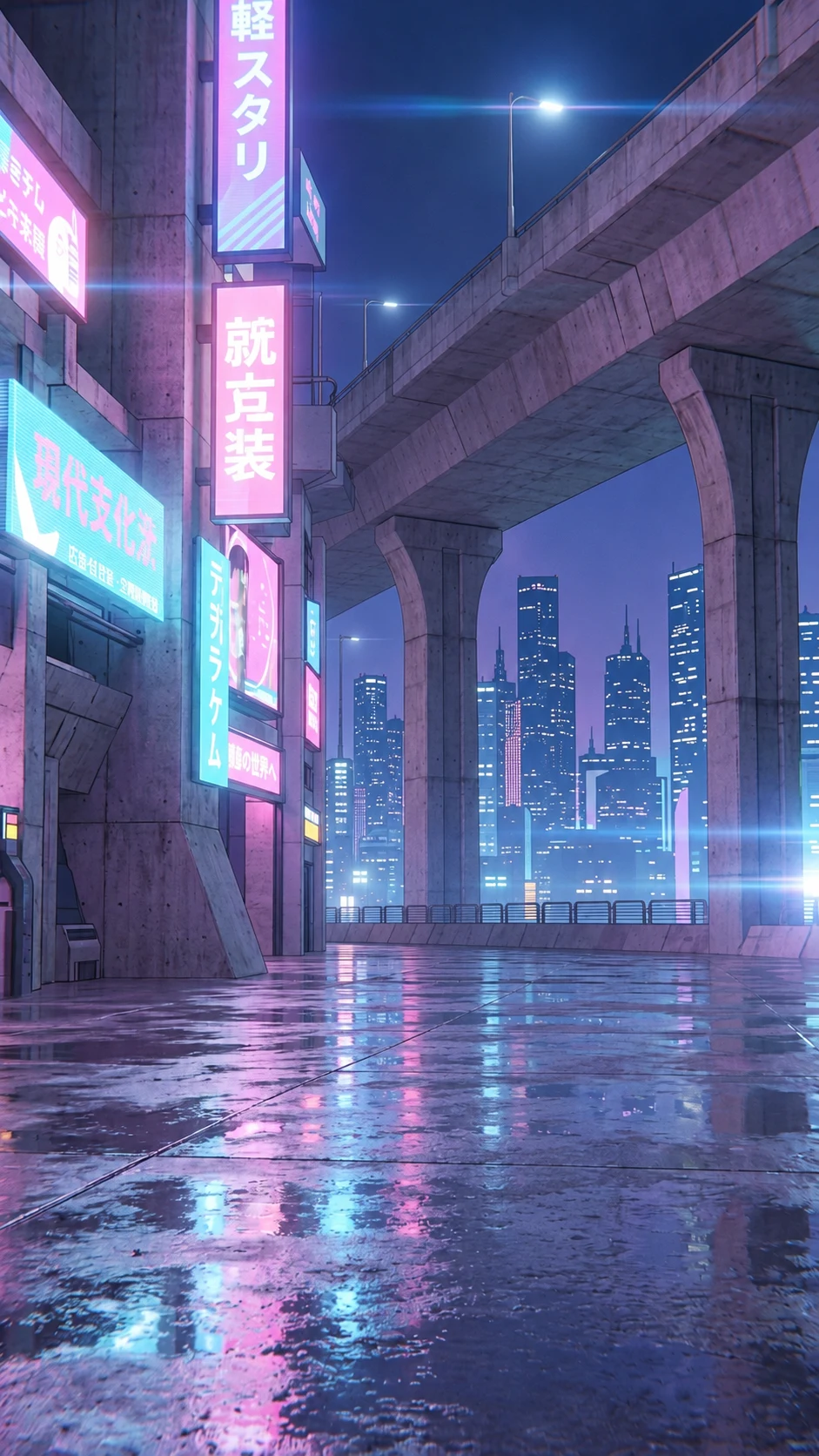
The environment
<Picture_2>
Upload the setting into the second Load Image node. It supplies architecture, ground, atmosphere and lighting.
KNOW WHAT
YOU’RE CHANGING.
Resolution changes detail. Duration changes the amount of action. FPS changes how frames map to time.
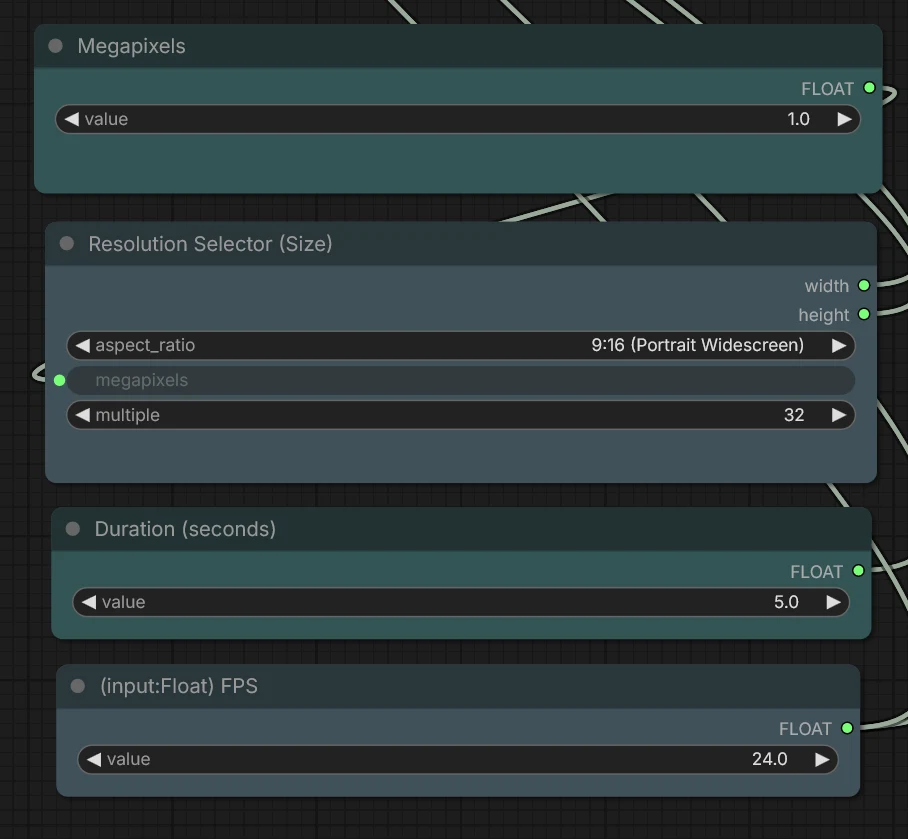
Megapixels = the pixel budget
Higher values generate larger frames and can preserve finer details, but increase memory use and processing work. A larger canvas cannot guarantee better identity or movement.
This selector uses MP × 1024 × 1024 as the target pixel count, then rounds dimensions. Start around 0.4–0.6 for a draft and try 1.0 after the prompt works. Those are test presets, not GPU guarantees.
Aspect ratio = the frame shape
The width-to-height relationship decides the canvas shape. Match your source framing first; changing it may crop, reframe or stretch references depending on the connected processing nodes.
| Ratio | Good starting use |
|---|---|
| 1:1 · Square | Square social posts |
| 2:3 · Portrait photo | Taller still-photo compositions |
| 3:2 · Photo | Landscape photo compositions |
| 3:4 · Portrait standard | Moderately tall frames |
| 4:3 · Standard | Traditional video / wider scenes |
| 9:16 · Portrait widescreen | Reels, Shorts and vertical footage |
| 16:9 · Widescreen | Landscape YouTube video |
| 21:9 · Ultrawide | Wide cinematic compositions |
Multiple = valid dimension increments
With 32, the selector rounds the width and height to the nearest multiples of 32. It does not multiply the image by 32. Rounding slightly changes the exact ratio and total pixels.
Keep 32 for this supplied H3 setup. Changing it is not a quality or speed shortcut; model compatibility comes first.
TRY THE FRAME.
Explore what the size controls do before you render.
FRAME
Multiple: 32 · Native timeline: 24 FPS
Size preview, not a render-time estimate.
The supplied resolution table +
These are the supplied 16:9 landscape sizes with multiple 32. For 9:16, swap width and height. For other shapes, use the calculator.
View the original reference table ↗Duration = how much video to generate
Start with 5 seconds. Longer clips require more frames, memory and processing, and give consistency more time to drift. Match the intended portion of your input video.
H3 uses a frame-length grid of 17k + 5 at 24 FPS. A five-second request may become 124 frames, about 5.17 seconds, depending on the processing graph. Inspect the actual output instead of assuming an exact five-second file.
FPS = frames per second
Keep the H3 generation timeline at 24 FPS. In the source loader, force_rate 24 resamples the reference to that timeline. In Video Combine, frame_rate controls how quickly the generated frames play back.
120 frames at 24 FPS = 5 seconds. Play those same frames at 15 FPS and they last 8 seconds. Changing the export rate does not create extra motion or detail.
Source loader force rate → Processing FPS input → final Video Combine frame rate. Set the final output to 24 when normal-speed 24 FPS playback is intended. Check the wiring before changing any other combine nodes.
A loader cap of 120 selects roughly five seconds of a 24 FPS source. This input selection is separate from H3’s generated-frame alignment.
Resolution calculation follows ComfyUI’s selector implementation. H3 timeline behavior is covered in the native workflow guide.
SAY WHAT
EACH INPUT DOES.
Use concrete descriptions. Assign identity to the sheet, performance to the video, and the environment to the optional second image.
YOUR PROMPT
Edit the fields above. Your prompt updates as you type.
Why this structure works +
Describe the desired result directly. Say how clothing fits together, name important accessories, and preserve the reference’s art style. Avoid conflicting instructions such as replacing the setting while also preserving the original room. For character-only mode, leave out Picture 2 entirely.
This builder uses the same <Picture_1> and <Video_1> spelling as the demonstrated prompts. Keep the reference tokens expected by your particular workflow.
RENDER.
WATCH. REFINE.
Run a short test
Confirm the inputs, prompt mode, aspect ratio and final export FPS. Click Run and inspect the result in Video Combine. Save the exported video.
Review the whole clip
Check the face, outfit, accessories, hand shapes, feet, ground contact, background stability and camera behavior. Identity can look correct in one frame and drift later.
Change one thing
Refine a single prompt instruction at a time. Keep the seed fixed if available when comparing revisions. Lower megapixels or duration if you run out of memory. Once the result works, increase resolution.
Save both modes
Save one workflow for character-only swaps and another for character + background swaps. This keeps the optional image input and prompt configuration consistent.
THIS DEMO’S LOCAL SETUP
RTX 5070 TiRendered locally in ComfyUI without a paid generation service. Timing is reported for this setup and varies with models, resolution and settings.
KEEP THE
TOOLS CLOSE.
The workflows and documentation behind the guide.
Install missing nodesComfyUI Manager↗Base model componentsMiniMax H3↗Community generation workflowKrea 2 Turbo GGUF↗Multi-view sheet workflow + LoRAKrea 2 CharacterSheet↗Community photo-edit workflowQwen Image 2.1 GGUF↗Official referenceComfyUI H3 documentation↗Use each workflow’s matching models and installation notes. Download the workflow PNG and demo files from the asset section above. Drag the original PNG into ComfyUI to load its embedded workflow.
YOUR CHARACTER.
YOUR NEXT WORLD.
Start with five seconds. Give every reference a clear role. Build from there.
Build your prompt ↗